FabCovid19: Automated FACS simulation
To automate the execution and analysis of FACS, we use a FabSim3-based FabCovid19 plugin (https://github.com/djgroen/FabCovid19). It provides an environment for researchers and organisations to construct and modify simulations, instantiate and execute multiple runs for different policy decisions, as well as to validate and visualise the obtained results against the existing data.
Installing the FabSim3 automation toolkit
To install FabSim3, you need to clone the FabSim3 repository:
git clone https://github.com/djgroen/FabSim3.git
To configure FabSim3 and install required dependencies, go to https://fabsim3.readthedocs.io/en/latest/installation.html that provides detailed instructions.
Installing the FabCovid19 plugin
Once you have installed FabSim3, you can install FabCovid19 by typing:
fabsim localhost install_plugin:FabCovid19
The FabCovid19 plugin will appear in <FabSim3_dir>/plugins/FabCovid19.
Configuration
There are a few small configuration steps to follow:
Go to
<FabSim3_dir>/plugins/FabFlee.copy
machines_FabCovid19_user_example.ymlasmachines_FabCovid19_user.yml.open
machines_FabCovid19_user.yml.Under the section
localhost, and setfacs_locationvalue with the actual path of FACS in your local PC.localhost: # location of FACS in your local PC facs_location: "<PATH to you local FACS installation>"
Automated FACS execution using FabCovid19
Run a single job
To run a single job, simply type:
fabsim <localhost/remote machine> covid19:<location_scenario>,<TS=transition scenario>,<TM=transition mode>,[outdir=output directory]
- where
configs: the name of borough, the full list can be found in https://github.com/djgroen/FabCovid19/tree/master/config_filesmeasures: name of the measures.yml file used, minus the .yml extension. This file should reside in the covid_data subdirectory
Example:
fabsim localhost covid19:configs=harrow,measures=measures
Run an ensemble job
To an an ensemble simulation of FACS,
fab <localhost/remote machine> covid19_ensemble:configs='<area_name>;<area2_name>'[,measures=<list of measures files>]
Note
By default, the measures.yml file will be used in simulations.
Examples:
fabsim localhost covid19_ensemble:configs='test',cores=1,replicas=1,measures=measures,starting_infections=10,job_wall_time=0:15:00

fabsim localhost covid19_ensemble:configs='harrow'

fabsim localhost covid19_ensemble:configs='brent;harrow;hillingdon'
To run an ensemble of parallel runs, using 4 cores per run, you can use a comment like the following examples:
fabsim localhost covid19_ensemble:configs='brent',cores=4,replicas=1,simulation_period=500,measures=measures,starting_infections=460,job_wall_time=1:00:00,solver=pfacs

fabsim localhost covid19_ensemble:configs='test',cores=4,replicas=1,starting_infections=460,measures=measures,solver=pfacs
If you ran an ensemble jobs, you may need to do averaging across runs on the output csv files before plotting, in that case you can type:
fabsim <localhost/remote machine> cal_avg_csv:<location_scenario>,<measures=measure_yml_file>
Examples:
submit an ensambe job, containing 25 identically configured simulations:
fabsim localhost covid19_ensemble:configs='brent',measures='measures;measures_nolockdown',replicas=25
submit an ensambe job using QCG-PilotJob:
fabsim localhost covid19_ensemble:configs='brent',measures=measures,replicas=25,PilotJob=true
fetch results:
fabsim localhost fetch_results
Calculate averages across runs (not recently tested):
fabsim localhost cal_avg_csv:brent,measures='lockdown_uk'
fabsim localhost cal_avg_csv:brent,measures='lockdown_uk'
Run post-processing on the output results
To perform the post-processing on the ouput results from a single or ensemble runs, simple type:
fabsim localhost facs_postprocess:<results_dir_name>
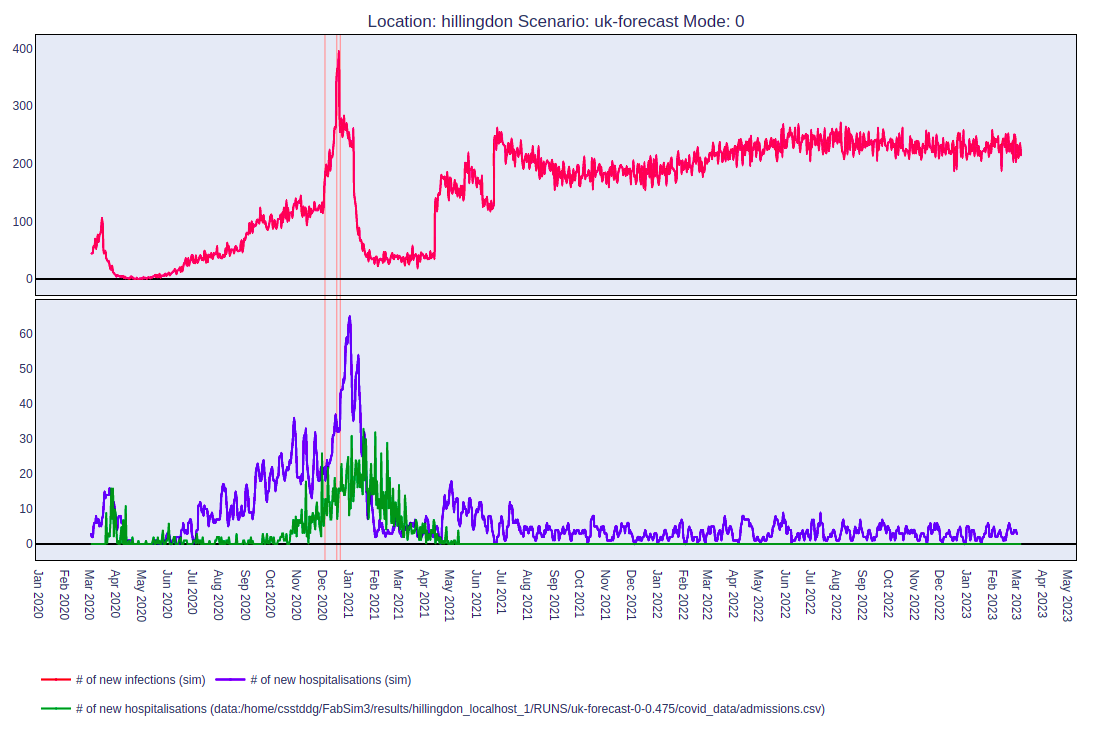
Here results dir is the name of the subdirectory only (e.g. brent_localhost_1), not the full path. Once you have run this, if everything has been configured correctly, you should get a web page that shows a plot like this:
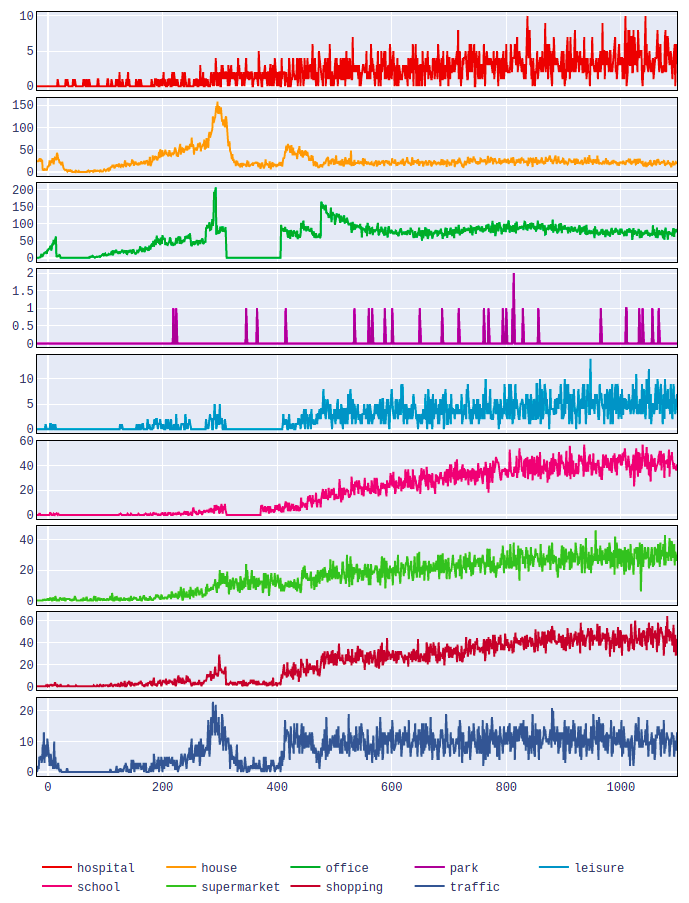
Similarly, you can now perform a comparison on infectious spread by location type. To do so, type:
fabsim localhost facs_locationplot:<results_dir_name>
Once you have run this, if everything has been configured correctly, you should get a web page that shows a plot like this:
Note
Before you execute facs_postprocess or facs_locationplot, you should fetch the results using fab <machine_name> fetch_results.